Help
Translations:Manuals:BXFbl:Receiver A/12/en: Difference between revisions
From BEASTX Wiki
Jump to navigation
Jump to search
Newer edit →
Revision as of 10:46, 17 April 2024
view source
FuzzyBot
(
talk
|
contribs
)
8,042
edits
Importing a new version from external source
Newer edit →
(No difference)
Revision as of 10:46, 17 April 2024
Information about message (
contribute
)
This message has no documentation. If you know where or how this message is used, you can help other translators by adding documentation to this message.
Message definition (
Manuals:BXFbl:Receiver A
)
<html>
<div style="display: flex; justify-content: flex-start; flex-wrap: wrap; gap: 50px;">
<!-- Erstes Bild und Text -->
<div style="width: 250px; text-align: center;">
<div style="border-radius: 30px; overflow: hidden; box-shadow: 0 4px 8px rgba(0, 0, 0, 0.2);">
<img src="https://wiki.beastx.com/images/studiox/freakware%202019-07-09%20011.PNG" alt="Screenshot" style="width: 100%; height: auto; display: block;">
</div>
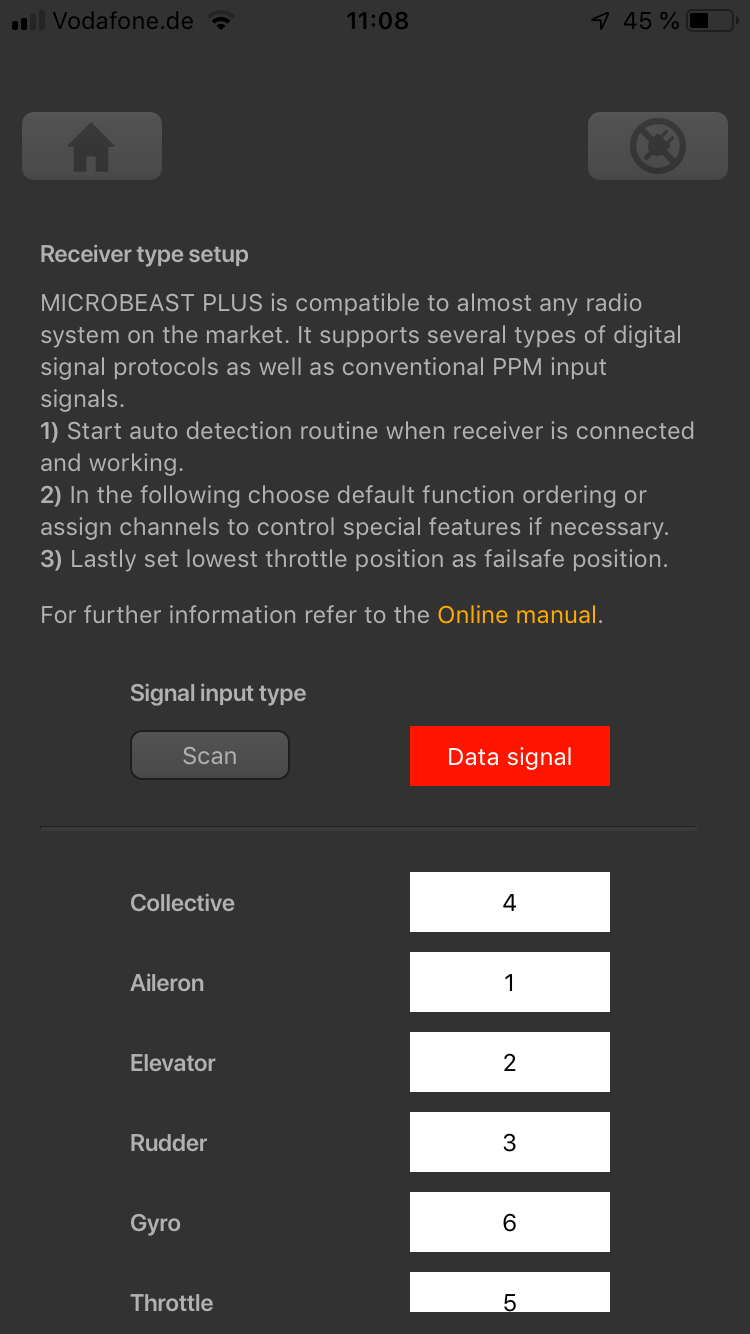
<div style="margin-top: 20px; margin-bottom: 10px;">Click "Receiver" button...</div>
</div>
<!-- Zweites Bild und Text -->
<div style="width: 250px; text-align: center;">
<div style="border-radius: 30px; overflow: hidden; box-shadow: 0 4px 8px rgba(0, 0, 0, 0.2);">
<img src="https://wiki.beastx.com/images/studiox/freakware%202019-07-09%20014.PNG" alt="Screenshot" style="width: 100%; height: auto; display: block;">
</div>
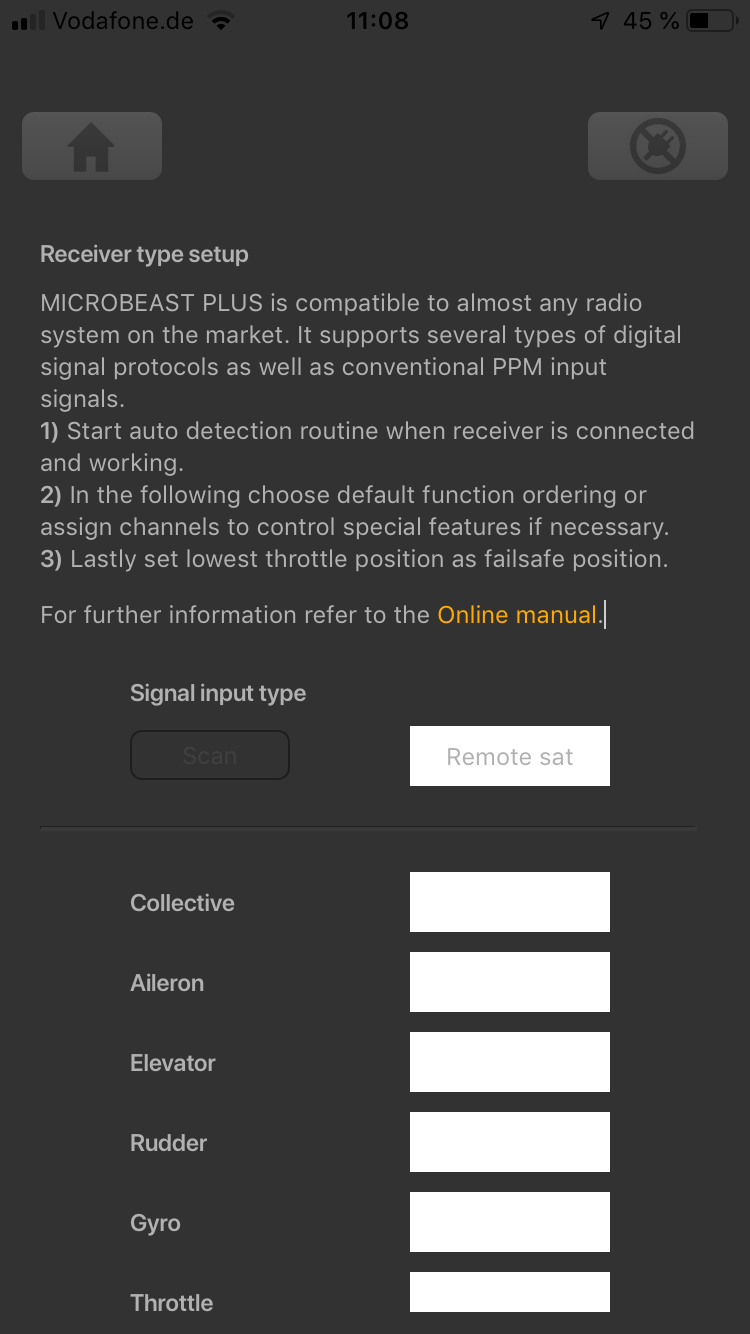
<div style="margin-top: 20px; margin-bottom: 10px;">...and wait until scan is finished.</div>
</div>
<!-- Drittes Bild und Text -->
<div style="width: 250px; text-align: center;">
<div style="border-radius: 30px; overflow: hidden; box-shadow: 0 4px 8px rgba(0, 0, 0, 0.2);">
<img src="https://wiki.beastx.com/images/studiox/freakware%202019-07-09%20016.PNG" alt="Screenshot" style="width: 100%; height: auto; display: block;">
</div>
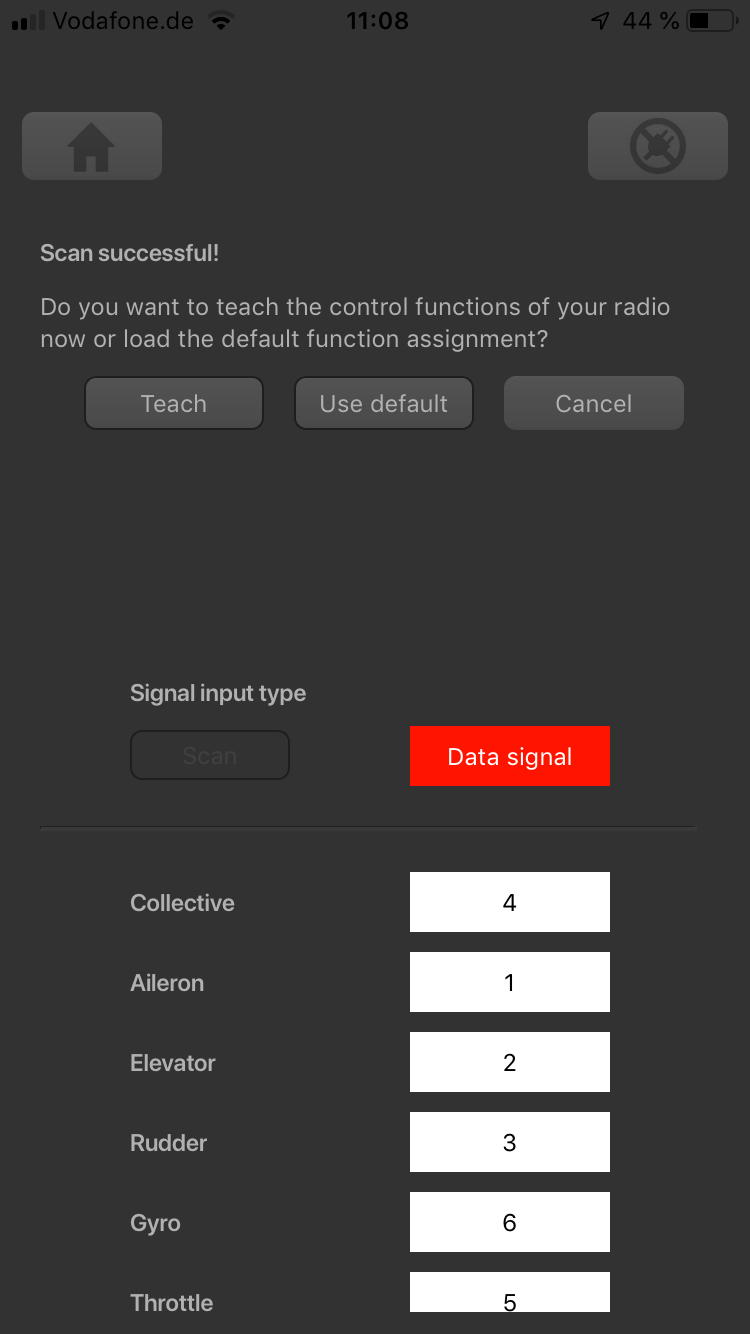
<div style="margin-top: 20px; margin-bottom: 10px;">If scan was successful a dialog will display to proceed.</div>
</div>
</div>
</html>
<br />
<br />
<img class="ios" src="
">
Click scan button...
<img class="ios" src="
">
...and wait until scan is finished
<img class="ios" src="
">
If scan was successful a dialog will show up to proceed
Navigation menu
Personal tools
English
Log in
Namespaces
Translation unit
Discussion
English
Views
Read
View source
View history
More
Search
Main Page
Informations
FAQs and troubleshooting
Tech stuff
How-Tos
Tools
What links here
Related changes
Special pages
Printable version
Permanent link
Page information
In other languages
 ">
">
 ">
">
 ">
">